Microsoft Teams
This is a Cognassist Employer product feature, not part of the Educator product this API documentation otherwise covers. FE providers building against the Public API do not need it.
The Cognassist Teams app surfaces Cognassist notifications inside Microsoft Teams for your staff. It is a convenience notification surface, not an API, so it does not carry learner data you can query or reconcile against.
Who this is for: Cognassist Employer customers who want their staff to see Cognassist activity where they already work. If you are building a data integration, this page is not on your path. The event-driven pattern for reacting to Cognassist activity in your own systems is webhooks; this Teams app is a separate, staff-facing convenience.
Connecting the app is a one-time setup, done once per Microsoft tenant by a Client Admin. The steps below cover the whole process.
Connect your Microsoft Teams tenant
1. Install the Cognassist app. Install it from the Microsoft Teams app store.
2. Connect your tenant. The first time the app is installed, you receive a connect notification in Teams. Select Connect, sign in to the Cognassist platform when redirected, and your tenant is connected automatically. A welcome message back in Microsoft Teams confirms the setup is complete.
The Connect button is valid for one minute
The Connect button expires one minute after you receive it. If you select it after it has expired, you see an error in the Cognassist platform. To get a fresh Connect dialog, type Connect in the Teams chat and press enter.
What the connect notification looks like
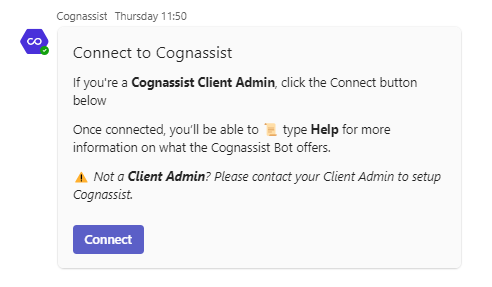
The connect notification arrives automatically on first install. You only see it once per tenant; after the tenant is connected, staff receive Cognassist notifications without any further setup.
Prerequisites
You must be a Client Admin in the Cognassist platform to connect a Microsoft Teams tenant. If you are not sure whether you hold that role, ask your Cognassist contact before you start.